

Veo 3.1 Audio Prompt Guide: Dialogue, SFX
How to write a Veo 3.1 audio prompt: dialogue, sound effects and ambience as three layers, Google's own format, the generate_audio flag, and caption fixes.
By OceanToken Team
Editor's note: Native audio is the main reason to pick Veo, and it's the part people prompt worst. They write a speech; Veo does better with one short line, a named speaker and a described room. Write every sound source the way a sound designer would, and plan to fix the occasional bad word in the edit.
Short answer: A good Veo 3.1 audio prompt has three layers: one short spoken line in quotation marks with a named speaker, specific sound effects, and an ambient bed. Google's guide formats them as A woman says, "...", SFX: ... and Ambient noise: .... Through an API that exposes it, set generate_audio explicitly, and keep one speaker per clip.
What Google says Veo 3.1 audio can do
Google DeepMind's Veo page , written for Veo 3, says Veo can add "sound effects, ambient noise, and even dialogue," generated natively with the picture. The same page is open about the limit: creating "natural and consistent spoken audio, particularly for shorter speech segments," is still "an area of active development," and Google says it is working to "eliminate instances of incoherent speech."
Google's Gemini API docs add two practical notes. English is "fully supported, but other languages have not been evaluated," so test any other language with a short line first. And Veo 3.1 "will sometimes block a video from generating because of safety filters or other processing issues with the audio," which means a failed job on a dialogue clip isn't always about the picture.
Take those as the ground rules: dialogue works often, not always, and a short line is where Google itself says the model is still improving.
The three-layer Veo 3.1 audio prompt
The Google Cloud prompting guide for Veo 3.1 gives one convention per layer:
| Layer | Google's convention | Example from the guide |
|---|---|---|
| Dialogue | Quotation marks for specific speech | A woman says, "We have to leave now." |
| Sound effects | Describe sounds with clarity | SFX: thunder cracks in the distance |
| Ambient noise | Define the background soundscape | Ambient noise: the quiet hum of a starship bridge |
DeepMind's prompt guide adds that you can either give characters exact lines or just "pick a topic for characters to talk about," and that audio can sit inside the prose or in a separate Audio: section. It also shows speaker labels in the form Camper: "I'm one with nature now!".
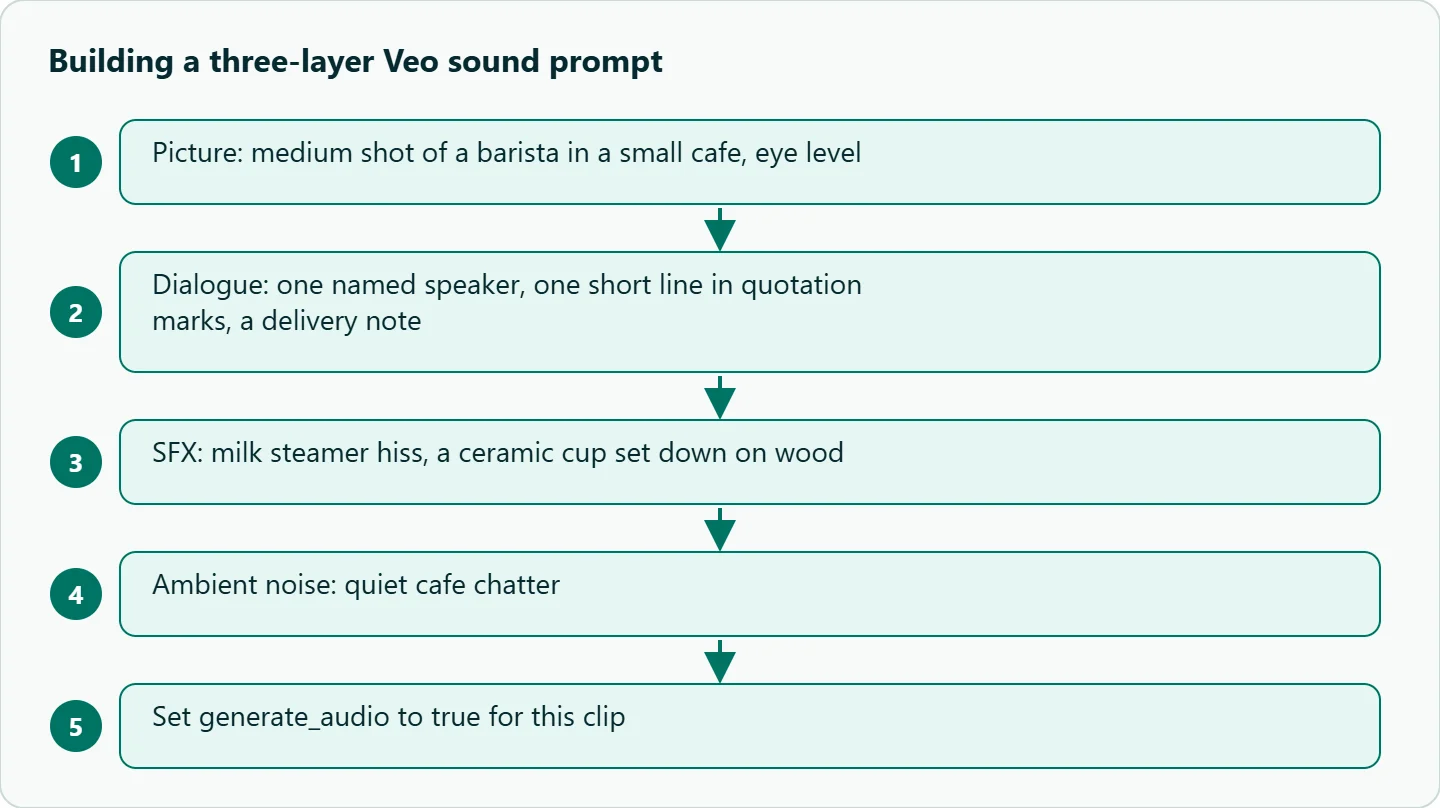
Put together, a full prompt reads like this:
"Medium shot of a barista in a small cafe, eye level. The barista says warmly, "Your oat latte is ready." SFX: milk steamer hiss, a ceramic cup set down on wood. Ambient noise: quiet cafe chatter."
Rules of thumb for Veo dialogue prompts
These are our editorial rules, built on Google's conventions rather than on measurements.
One speaker, one line per clip. A Veo 3.1 clip runs 4, 6 or 8 seconds. A back-and-forth conversation is easier to control as separate clips cut together than as two voices in one generation.
Time the line out loud. Read it at the pace you want, with a beat before and after. If it doesn't fit comfortably in the clip length, shorten it rather than hoping the model speeds up.
Name the delivery. "Says warmly," "whispers," "shouts over the wind." A speaker with no delivery note gets whatever reading the model picks.
Match sounds to visible sources. A door slam needs a visible door. Sounds with no source in the frame give the model something it has to invent.
Keep music out of dialogue clips. If you plan to score the edit, describe only effects and ambience, and add the music later on your own timeline.
Say what you want, not what you don't. Google's guide recommends describing the result you want instead of listing exclusions. "Blank wooden sign" is a clearer instruction than "no text on the sign."
Planning a conversation across clips
Plan the audio from the edit backward. Decide which clips carry a line and which are silent-friendly cutaways, then spend retries on the clips where the words matter. A four-shot cafe exchange might look like this, with each line in its own clip:
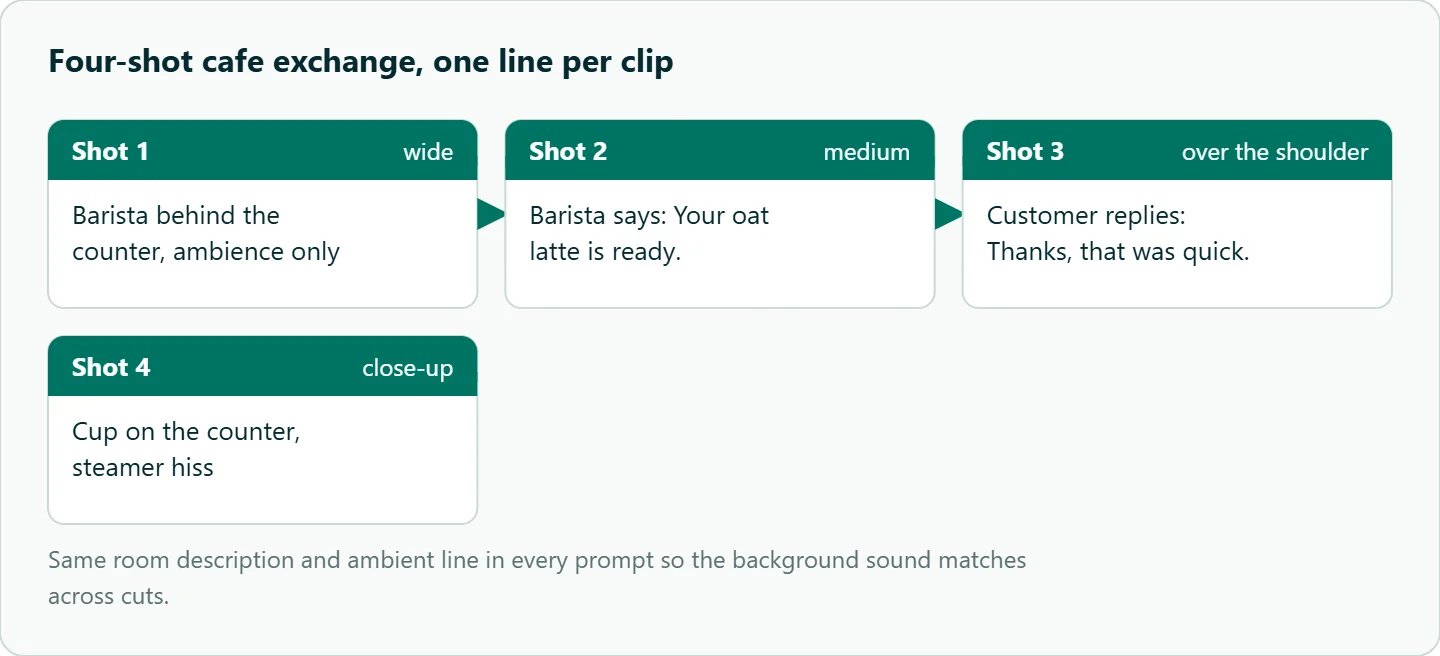
Shot 1 (wide): the barista behind the counter, ambience only. Shot 2 (medium): the barista says, "Your oat latte is ready." Shot 3 (over the shoulder): the customer replies, "Thanks, that was quick." Shot 4 (close-up): the cup on the counter, steamer hiss. Same room description and ambient line in every prompt, so the background sound matches across cuts.
Stray captions and garbled on-screen text
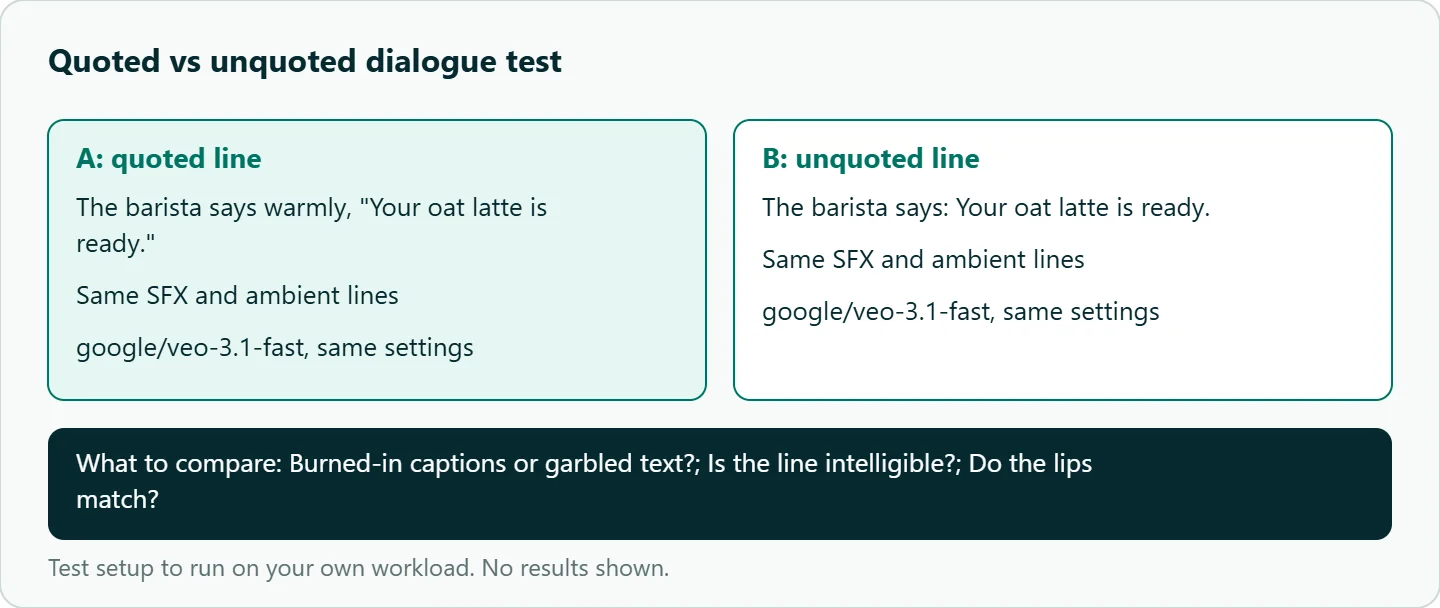
If your clips come back with burned-in captions or garbled text that you didn't ask for, it is worth testing the dialogue format itself. Google's convention is quotation marks; the alternative to test is the same line written as The barista says: Your oat latte is ready. without quotes. Describe any signage or screens in the scene as blank, and remove words like "caption," "title" or "text" from the visual description.
We haven't measured which format produces fewer artifacts, so treat this as a test to run, not a fix.
How to test this on your workload
Run the same cafe line in both formats, a few takes each, on google/veo-3.1-fast, with every other setting fixed. Listen on headphones and watch at full size.
Then a single-line worked example. Picture: "Medium shot, eye level, a courier in a yellow jacket hands a small parcel to a woman at a door, evening, warm porch light." Dialogue: "The courier says, "Sign here, please."" Sound: "SFX: soft footsteps. Ambient noise: light rain, distant traffic." Check three things: is the line intelligible, do the lips match, and does the ambience sit under the voice without masking it?
| Failure | What to try next |
|---|---|
| Words dropped or swapped | Shorten the line; replace uncommon words |
| Music you didn't ask for | Describe only SFX and ambience; mix your own bed |
| Two characters in one voice | One speaker per clip |
| Background too loud | Fewer ambient sources |
| Job fails on a dialogue clip | Simplify the line; Google notes audio issues can block a video |
Our take: Treat Veo dialogue as a strong draft, not a final mix. Write three layers, keep one short line per clip, set the audio flag on purpose, and keep the option of replacing a word with a recorded or synthesized take in the edit.
Running it on OceanToken
The /veo-api page lists google/veo-3.1, google/veo-3.1-fast and google/veo-3.1-lite, with base URL https://api.oceantoken.ai/v1 and async jobs on POST /v1/videos. See the current rate on /veo-api.
One detail differs from Google's own API. In the Gemini API, Veo 3.1 audio is always on. OceanToken's model docs expose a generate_audio boolean, true for sound and false for silent, and don't state a default. Set it to true on dialogue clips and false on cutaways you'll score yourself.
The API is OpenAI-compatible, so an existing OpenAI SDK project only needs the base URL and key changed. One key and a prepaid balance cover all three Veo tiers and the other models on the video page, so drafting on Fast and rendering finals on standard is a one-line change. For other models' dialogue habits, see our Seedance lip-sync guide and the Hailuo H3 native audio guide.
FAQ
Does Veo 3.1 generate its own dialogue? Yes. Google says Veo generates dialogue, sound effects and ambient noise natively, while noting that short speech is still being improved.
How should I format dialogue in a Veo prompt? Google's guide uses quotation marks with a named speaker, such as A woman says, "We have to leave now."
How long should a spoken line be? Short enough to say comfortably within the clip, which is 4, 6 or 8 seconds. Time it out loud.
Which languages does Veo 3.1 audio support? Google says English is fully supported and other languages have not been evaluated.
Can I get ambience without dialogue? Yes. Describe only SFX and ambient noise, with no spoken line.
Sources
- Google Cloud: Ultimate prompting guide for Veo 3.1 (checked 2026-11-11)
- Google DeepMind: How to create effective prompts with Veo 3 (checked 2026-11-11)
- Google DeepMind: Veo (checked 2026-11-11)
- Google: Veo in the Gemini API docs (checked 2026-11-11)
- OceanToken docs: google/veo-3.1 (checked 2026-11-11)
- OceanToken docs: google/veo-3.1-fast (checked 2026-11-11)
- OceanToken Veo API page (checked 2026-11-11)
Get your OceanToken API key
- Create an OceanToken account and an API key.
- Copy the snippet below, paste your key, and run it.
- Check the current rate on /veo-api.
curl https://api.oceantoken.ai/v1/videos \
  -H "Authorization: Bearer $OCEANTOKEN_API_KEY" \
  -H "Content-Type: application/json" \
  -d '{"model": "google/veo-3.1-fast", "prompt": "Medium shot of a barista in a small cafe, eye level. The barista says warmly, \"Your oat latte is ready.\" SFX: milk steamer hiss. Ambient noise: quiet cafe chatter.", "duration": 8, "resolution": "720p", "generate_audio": true}'
More from the blog
A Unified API for Chat, Image and Video
Building on a unified API for chat, image and video: sync vs async calls, billing units, retries, timeouts and storage, with three calls and a launch checklist.
Kimi K3 API International Access Guide
Use the Kimi K3 API internationally: sign up with email, pay by card, create one key and call moonshotai/kimi-k3 with an OpenAI SDK. Steps, code and checks.
Call Tencent Hy3 With the OpenAI SDK
Call Tencent Hy3 with the OpenAI SDK outside China: base URL, model id, streaming, tool calls, reasoning_effort values, Hy3 vs Hy3 preview, and token billing.