

Seedance 2.0 API English Signup Guide
Seedance 2.0 API English signup, step by step: create an account by email, add credits by card, make an API key and send your first video job with one curl.
By OceanToken Team
Editor's note: For many teams outside China, the hard part of the Seedance 2.0 API was never the request body. It was getting an account in the first place. That part is now an English email signup with no ByteDance account involved. The step people still get wrong is the first job: they wait on it like a chat call, skip duration and resolution, and lose the job id. The steps below cover all three.
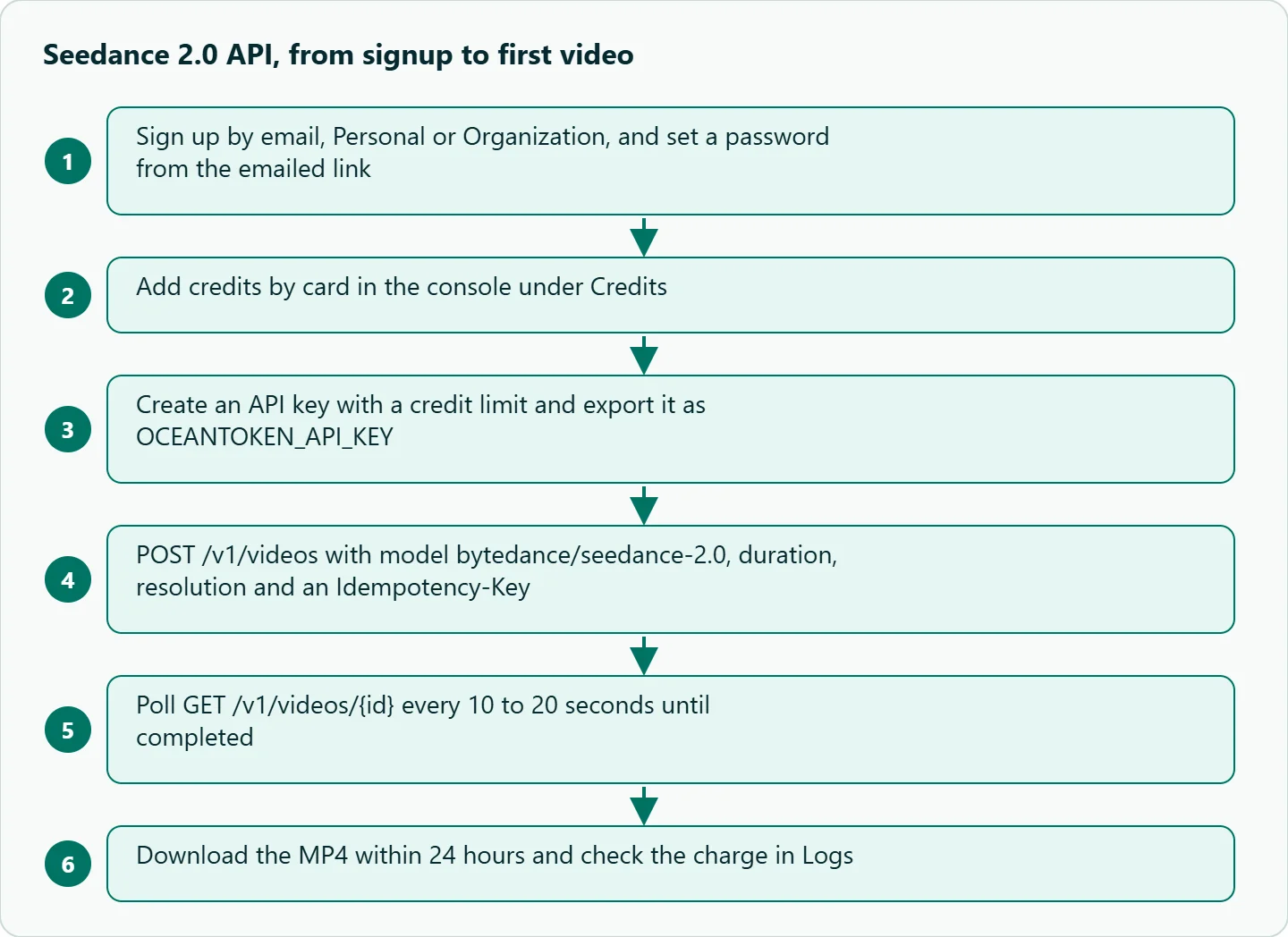
Short answer: For a Seedance 2.0 API English signup with no ByteDance account, create an OceanToken account by email, add credits by card in the console, create an API key, then send POST /v1/videos with the model bytedance/seedance-2.0. The call returns a job id; poll it until the status is completed, then download the MP4 within 24 hours.
01 · What you need before the Seedance 2.0 API English signup
The whole path runs in English, in a browser and a terminal. Here is what each step asks for, from the docs pages checked November 17, 2026:
| Step | What you need | Where |
|---|---|---|
| Create an account | An email address you can open (disposable addresses are refused) | app.oceantoken.ai/ui/signup |
| Add credits | A payment card for the hosted checkout | Console, Credits |
| Create a key | Nothing extra; decide a name and a credit limit | Console, API Keys |
| First video | A terminal with curl, and a prompt |
Your machine |
You do not need a ByteDance account, and you do not need separate access per video model: the same key calls Seedance 2.0 and the rest of the catalog. If you are still deciding whether to go to the model maker directly or through one key, our comparison of official access and a gateway for Seedance covers that trade-off. This guide assumes you have decided and want a first clip today.
02 · Step 1: create the account
Go to the signup page. It has two tabs. Choose carefully: per the enterprise page, the Organization (team) account is chosen once, at sign-up.
| Personal | Organization | |
|---|---|---|
| Who it is for | You, using the API yourself | A company or team under one bill |
| What you enter | Work email and organization name | |
| What you get | One account with its own balance and keys | A shared balance you administer, with members you invite |
Pick Organization if more than one person will spend from the same balance. You can invite members later, and an organization's administrator can give each team a share of the wallet that it cannot spend past.
Submit your email, open the message that arrives and follow the link, then set a password. The account is active the moment the password is set. If the message does not come within a few minutes, check spam and request it again from the same page. After that you can sign in with email and password, or with Google or GitHub if the email matches.
03 · Step 2: add credits
The balance is prepaid, so a paid model only runs when your balance can cover it. In the console, open Credits, pick one of the preset amounts under Add credits or type your own, and choose Add credits. You are sent to a hosted checkout page to pay by card; the processing fee is shown there as its own line. When payment completes, the new balance appears under Available balance and at the bottom of the sidebar.
Two details from the docs are worth knowing before your first video. Purchased credits are valid for 12 months from the date of purchase. And video works differently from chat at the balance level: a job reserves its estimated cost when it starts and settles to the actual cost when it finishes. If your available balance cannot cover the estimate, the create call is refused with a 400 and no job starts. So on a small balance, always send duration (the docs also accept seconds) and resolution; the add-credits page notes that a video request without seconds and resolution is priced at a high default and may not fit.
04 · Step 3: create an API key
Open API Keys and choose Create key. The form has four fields:
| Field | What it does | What to pick for a first test |
|---|---|---|
| Name | A label, unique in your account | seedance-test |
| Expiration | When the key stops working | A short period for a test key |
| Credit limit | The most this key may spend in total, taken from your credits | A small custom amount |
| Reset limit every | How often the key's spend counter resets | N/A, so the limit is a one-time total |
Copy the key when it appears. It starts with sk- and is shown only once; if you lose it, create a new one and delete the old one. Then put it in your shell so it never sits in your code:
export OCEANTOKEN_API_KEY=sk-...
The credit limit is the cheapest insurance in this guide. A polling loop with a bug can submit jobs faster than you notice, and a key with its own limit stops at that limit instead of draining the whole balance.
05 · Step 4: send your first Seedance 2.0 video job
Video takes minutes to render, so it is a job, not a request you wait on. One call creates it:
curl https://api.oceantoken.ai/v1/videos \
  -H "Authorization: Bearer $OCEANTOKEN_API_KEY" \
  -H "Content-Type: application/json" \
  -H "Idempotency-Key: first-seedance-001" \
  -d '{"model": "bytedance/seedance-2.0", "prompt": "A paper boat drifting down a rain gutter, close up, soft light", "duration": 5, "resolution": "720p"}'
The answer is the job, with an id and the status queued. Keep that id. The Idempotency-Key header means that if your network drops and you send the same call again, you get the same job back instead of starting, and paying for, a second one.
These are the fields used above, plus the two you are most likely to add next:
| Field | Value here | What it does |
|---|---|---|
model |
bytedance/seedance-2.0 |
The model id from the Seedance 2.0 model page |
prompt |
Your shot description | What happens in the clip |
duration |
5 |
Length in whole seconds; Seedance 2.0 takes 4 to 15 |
resolution |
720p |
480p, 720p, 1080p or 4K on this model; lower is faster and cheaper |
aspect_ratio |
Not sent | 16:9, 9:16, 1:1 and others, or adaptive to follow a first frame |
generate_audio |
Not sent | false for a silent clip; sound is on by default |
Then poll GET /v1/videos/{video_id} until the status is completed and download the MP4 within 24 hours. Our Seedance API quickstart in Python runs that create, poll and download loop in one file.
06 · Where to see job status and usage
You do not have to keep the terminal open to know what happened. The console lists every job under Media, and Logs shows each job's charge once it settles. Activity shows spend per day and per model. From code, GET /v1/videos lists your jobs newest first, which is how you recover an id you forgot to save.
If a job fails, the job's error code says why, and a failed job is not charged. The video guide in the docs lists each error code and what to do about it, and our quickstart covers the common errors when creating a job.
How to test this on your first run
We have not timed this signup flow for this article. Check these yourself on the first pass:
- Confirm the activation email arrives and the account is active once you set a password.
- After your top-up, confirm the Available balance in the console matches the credit you chose.
- Create a key with a small credit limit and confirm it starts with
sk-. - Send the curl above twice with the same
Idempotency-Keyand confirm only one job appears under Media. - Poll until
completed, download the MP4, and check its charge in Logs. - Send a duration outside 4 to 15 seconds and confirm the
400names the accepted range.
Our take: Keep the first job small (5 seconds at 720p), always send duration, resolution and an Idempotency-Key, and put a credit limit on the key before it goes anywhere near an app. The signup itself takes care of the access problem. These three habits take care of the billing surprises that come after it.
Running it on OceanToken
Seedance 2.0 runs on OceanToken at the OpenAI-compatible base URL https://api.oceantoken.ai/v1 with the model id bytedance/seedance-2.0. The same key and balance call every other model in the catalog, and moving to another Seedance series, such as bytedance/seedance-2.5, is a change of model id as long as your values fit its options. You pay per use from a prepaid balance with no subscription, failed video jobs are not charged, and every key can carry its own credit limit. Seedance 2.0 is billed per 1M video tokens, counted as width × height × (24 × seconds + 1) ÷ 1024, so length, resolution and aspect ratio all change the cost. See the current rate on /seedance-api, with all models on /pricing.
FAQ
Do I need a ByteDance account to use the Seedance 2.0 API? No. You sign up with an email on OceanToken, add credits and use one API key for Seedance 2.0.
Is the signup in English? Yes. Signup, the console and the docs are in English, and activation happens through an emailed link.
What happens if my balance is too low for a video? The create call is refused with a 400 and no job starts, because a video job holds its estimated cost before it runs.
Am I charged for a failed Seedance job? No. A failed job is not charged and its hold is released.
How long can I download my video? The content_url is valid for 24 hours after the job completes, so download the MP4 and keep your own copy.
Sources
- OceanToken docs: Create an account (checked 2026-11-17)
- OceanToken docs: Add credits (checked 2026-11-17)
- OceanToken docs: Create an API key (checked 2026-11-17)
- OceanToken docs: Video (checked 2026-11-17)
- OceanToken docs: Quickstart (checked 2026-11-17)
- OceanToken: Seedance 2.0 model page (checked 2026-11-17)
- OceanToken: Enterprise (checked 2026-11-17)
Get your OceanToken API key
- Create an OceanToken account and an API key.
- Copy the snippet below, paste your key, and run it.
- Check the current rate on /seedance-api.
curl https://api.oceantoken.ai/v1/videos \
  -H "Authorization: Bearer $OCEANTOKEN_API_KEY" \
  -H "Content-Type: application/json" \
  -d '{"model": "bytedance/seedance-2.0", "prompt": "A paper boat drifting down a rain gutter, close up, soft light", "duration": 5, "resolution": "720p"}'
More from the blog
GPT-6.1 Sol to GPT-6.2 Sol Upgrade Guide
GPT-6.1 Sol to GPT-6.2 Sol upgrade: same listed specs, what OpenAI says changed, the one-line model change, what to retest, and a shadow-test script.
How to Make GTA 6-Style Videos with AI
Four GTA 6-style AI video shots with the exact prompts, image-to-video to fix sign text, and one chase prompt run on Seedance, Kling, Hailuo and Veo.
How to Create GTA 6-Style Scenes with AI
Four GTA 6-style scenes written as code by Claude Fable 5.2, including a drivable 3D street, plus 14 prompts to copy and the fixes for what goes wrong.