
Nano Banana Edit Image Prompts: One Change
Nano Banana edit image prompts that keep the rest intact: one change per turn, say what stays fixed, when to restart, and how to chain edits by API.
By OceanToken Team
Editor's note: The most expensive habit in image editing is the paragraph prompt: "make the sky pinker, remove the sign, add a dog, and keep it realistic." One of those four will go wrong and you will not know which. One change per turn means more turns but fewer wasted ones, and every bad step is easy to undo.
Short answer: Good Nano Banana edit image prompts change one thing and name what stays. Send the image plus one instruction, such as "Replace the red mug with a white mug; keep everything else identical," check the result, then continue from the accepted version. Restart from the original when two edits in a row make the picture worse.
Why one change per turn works
Google's image generation docs give the reason in their best practices: "Don't expect a perfect image on the first try. Use the conversational nature of the model to make small changes." They add that for complex scenes you should "break your prompt into steps."
There is a practical reason too. When an edit with four requests goes wrong, you cannot tell which request caused it, so you rewrite the whole prompt and roll the dice again. With one change per turn, a bad result points straight at the instruction that caused it. You keep the good steps, retry only the bad one, and after a few days of edits you know which phrasings your model follows.
The Nano Banana edit loop
Start from the cleanest version of the image, at the aspect ratio you will deliver. Then repeat five steps.
- Pick one verb: replace, remove, recolor, relight or re-crop. Not two.
- Say what stays: "Keep the hands, table, lighting and background identical."
- Check the result at full size. Edges, small text and hands fail first.
- Save each accepted step as its own file, with the prompt next to it.
- Continue from the last accepted file, not from a rejected one.
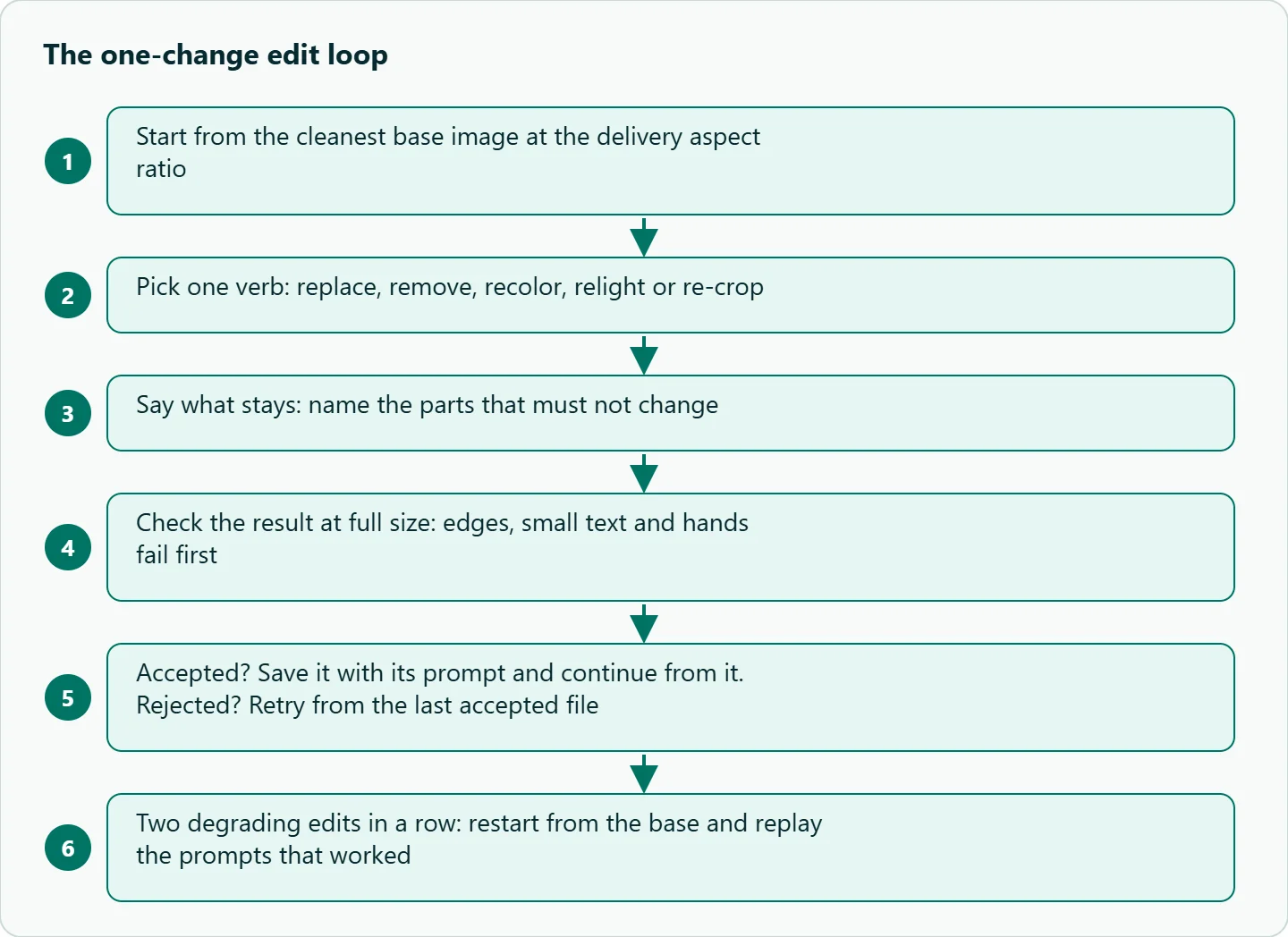
Step 4 is the one people skip. Branching instead of stacking means you can go back to the second accepted image and try a different relight without redoing the object swap. It also gives you a log of prompts that worked, and that log tells you which phrasings this model follows on your images.
Nano Banana edit image prompts that work
Google's docs offer templates for this. For inpainting: "Using the provided image, change only the [specific element] to [new element/description]," and keep everything else the same. For adding or removing: "Using the provided image of [subject], please [add/remove/modify] [element] to/from the scene." The table applies that pattern to common jobs.
| Goal | Weak prompt | Better prompt |
|---|---|---|
| Swap an object | "Make it nicer" | "Replace the plastic cup with a ceramic cup, same position and size" |
| Remove | "Clean this up" | "Remove the traffic sign on the left; fill with matching brick wall" |
| Change text | "Fix the text" | "Change the headline to exactly: SPRING SALE. Keep font, color and placement" |
| Relight | "More dramatic" | "Change lighting to low golden sun from camera left; keep composition" |
| Recolor | "Make it blue" | "Make only the jacket navy blue; leave skin, hair and background unchanged" |
| Translate | "In German" | "Translate all text to German; change nothing else" |
The last row mirrors an example in Google's docs, which updates an infographic to Spanish with the instruction "Do not change any other elements of the image." Two more tips from the same page help with edits. Describe what you want positively: "an empty, deserted street" works better than "no cars." And to protect a face or a logo during an edit, "describe them in great detail" in the prompt.
When to restart instead of continue
Continue while each step improves the picture. Restart from the base image when any of these show up:
- The same region has been edited three times and is starting to smear.
- A face drifts after two edits. Go back to the base and replay the two edits as separate turns with a stronger keep clause that describes the face in detail, as Google advises. If it still drifts, do the face-sensitive change first.
- Letters start to mutate. Restore the last clean version and add the text in a layout tool, or follow Google's advice to settle the exact text first and then ask for the image with it.
Restarting feels like lost work, but the saved steps from the loop make it cheap: you replay the prompts that worked, in order, from a clean base.
Calling it from code: chaining edits yourself
Google recommends multi-turn conversation on its own API and continues an edit by passing previous_interaction_id. The OceanToken endpoint works differently, and this is where code copied from Google's docs goes wrong.
The model docs for google/gemini-3.1-flash-image list POST /v1/images/generations and /v1/images/edits. You add up to 16 images in an images array (public URLs or data URLs), and "the request is then an edit." The table has no interaction id, and size takes an aspect ratio such as 1:1 or 16:9, not Google's 1K, 2K or 4K sizes. Parameters outside the table are "left out before it reaches the model," so a copied image_size field is silently ignored rather than rejected. Each request stands alone, so you carry the state: send the last accepted image back with the next instruction.
import os, requests

API = "https://api.oceantoken.ai/v1/images/generations"
HEAD = {"Authorization": f"Bearer {os.environ['OCEANTOKEN_API_KEY']}"}

def edit(image_url, prompt):
    r = requests.post(API, headers=HEAD, timeout=300, json={
        "model": "google/gemini-3.1-flash-image",
        "prompt": prompt,
        "images": [image_url],  # an image in the request makes it an edit
        "size": "1:1",
    })
    r.raise_for_status()
    return r.json()["data"][0]["url"]  # download within 24 hours

current = "https://example.com/product.png"  # your base image
steps = [
    "Replace the red mug with a white ceramic mug. Keep everything else identical.",
    "Warm the lighting slightly. Keep composition and objects identical.",
    "Add the word MORNING on the mug in black sans-serif. Change nothing else.",
]
for i, step in enumerate(steps, 1):
    out = edit(current, step)
    with open(f"edit_{i}.png", "wb") as f:
        f.write(requests.get(out, timeout=120).content)
    if input(f"accept edit_{i}.png? [y/n] ") != "y":
        continue
    current = out
Save every output locally, because the returned links expire after 24 hours and your branch history should not depend on them. For a local base image, send a data URL instead of an https link.
Which Nano Banana model for edits
The /nano-banana-api page lists three current choices on 2026-11-11: Nano Banana 2 (google/gemini-3.1-flash-image), Nano Banana Pro (google/gemini-3-pro-image) and Nano Banana 2 Lite (google/gemini-3.1-flash-lite-image). Google's docs say Lite is "Not optimized for multiple reference inputs or multi-turn sequential editing," so it is a poor fit for this loop. Pro is Google's premium choice for complex tasks and brand consistency. Google's docs now point new projects to a newer Nano Banana 2.1, which the catalog did not list that day.
Our default for the loop is Nano Banana 2, moving a step to Pro when a logo or product label must survive the edit. If you need pixel-exact control over a region, a mask-based editor is the better tool; our GPT Image masks guide covers that approach.
How to test this on your workload
You can check the one-change claim on your own images in an afternoon. Take one product photo and one end goal with four changes. Run it as a single paragraph prompt three times, then as four single-change turns three times, same model and size. Record how many runs reach the goal, at which turn the first defect appears, and how many retries each approach needed.
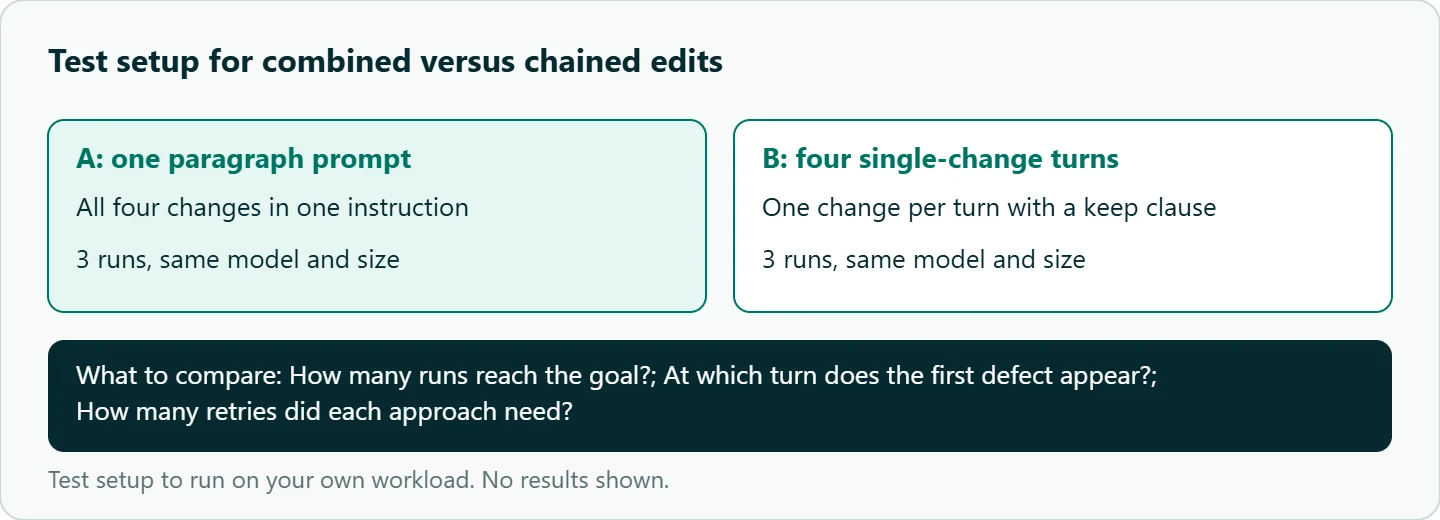
We have not run this comparison yet, so treat it as a checklist, not a result.
Our take: Edit chains are cheap to run and expensive to debug, so make them easy to debug. One change per turn, an explicit keep clause, a saved file per accepted step, and a restart rule. Do the pixel-exact parts, like strict logos, in an editor, and let Nano Banana handle what it is good at: lighting, backgrounds, object swaps and variations.
Running it on OceanToken
Use google/gemini-3.1-flash-image with the base URL https://api.oceantoken.ai/v1; see the model page. See the current rate on /nano-banana-api.
The API is OpenAI-compatible, so switching means changing the base URL and the key. One key and one prepaid balance, with no subscription, cover all three Nano Banana models, so moving a hard step to Pro is a change to the model string. Each key can have its own spending limit, which helps when an edit script runs in a loop.
FAQ
Why did my edit change things I did not mention? The model redraws the whole image. Add an explicit clause naming what must stay unchanged.
Can I edit one region only? Describe the region in words, for example "change only the jacket." For strict pixel masks, use a mask-based editor.
Why is my 2K size setting ignored? On OceanToken, size takes an aspect ratio, and fields outside the parameter table are dropped.
How do I stop text from mutating? Quote the exact string, change it once, and add it in a layout tool if it must be perfect.
Is there an invisible watermark? Yes. Google says "All generated images include a" SynthID watermark.
Sources
- Google AI for Developers: Image generation with Gemini (checked 2026-11-11)
- OceanToken docs: google/gemini-3.1-flash-image (checked 2026-11-11)
- OceanToken Nano Banana API page (checked 2026-11-11)
Get your OceanToken API key
- Create an OceanToken account and an API key.
- Copy the snippet below, paste your key, and run it.
- Check the current rate on /nano-banana-api.
curl https://api.oceantoken.ai/v1/images/generations \
  -H "Authorization: Bearer $OCEANTOKEN_API_KEY" \
  -H "Content-Type: application/json" \
  -d '{"model": "google/gemini-3.1-flash-image", "prompt": "Replace the red mug with a white ceramic mug. Keep everything else identical.", "images": ["https://example.com/product.png"], "size": "1:1"}'
More from the blog
A Unified API for Chat, Image and Video
Building on a unified API for chat, image and video: sync vs async calls, billing units, retries, timeouts and storage, with three calls and a launch checklist.
Kimi K3 API International Access Guide
Use the Kimi K3 API internationally: sign up with email, pay by card, create one key and call moonshotai/kimi-k3 with an OpenAI SDK. Steps, code and checks.
Call Tencent Hy3 With the OpenAI SDK
Call Tencent Hy3 with the OpenAI SDK outside China: base URL, model id, streaming, tool calls, reasoning_effort values, Hy3 vs Hy3 preview, and token billing.