

Editing Kling Clips in CapCut and Premiere
A Kling CapCut Premiere editing workflow: read frame rate with ffprobe, name and conform clips, hide joins, layer audio and text, grade, export 9:16 or 16:9.
By OceanToken Team
Editor's note: Generation gets the attention, but the edit decides whether five separately generated clips read as one ad. Most of the fixes are boring: name files properly, check the frame rate before you build a timeline, lay one audio bed under everything, put text in the editor instead of the prompt. We think a fixed edit template saves more time than another round of prompt tweaks.
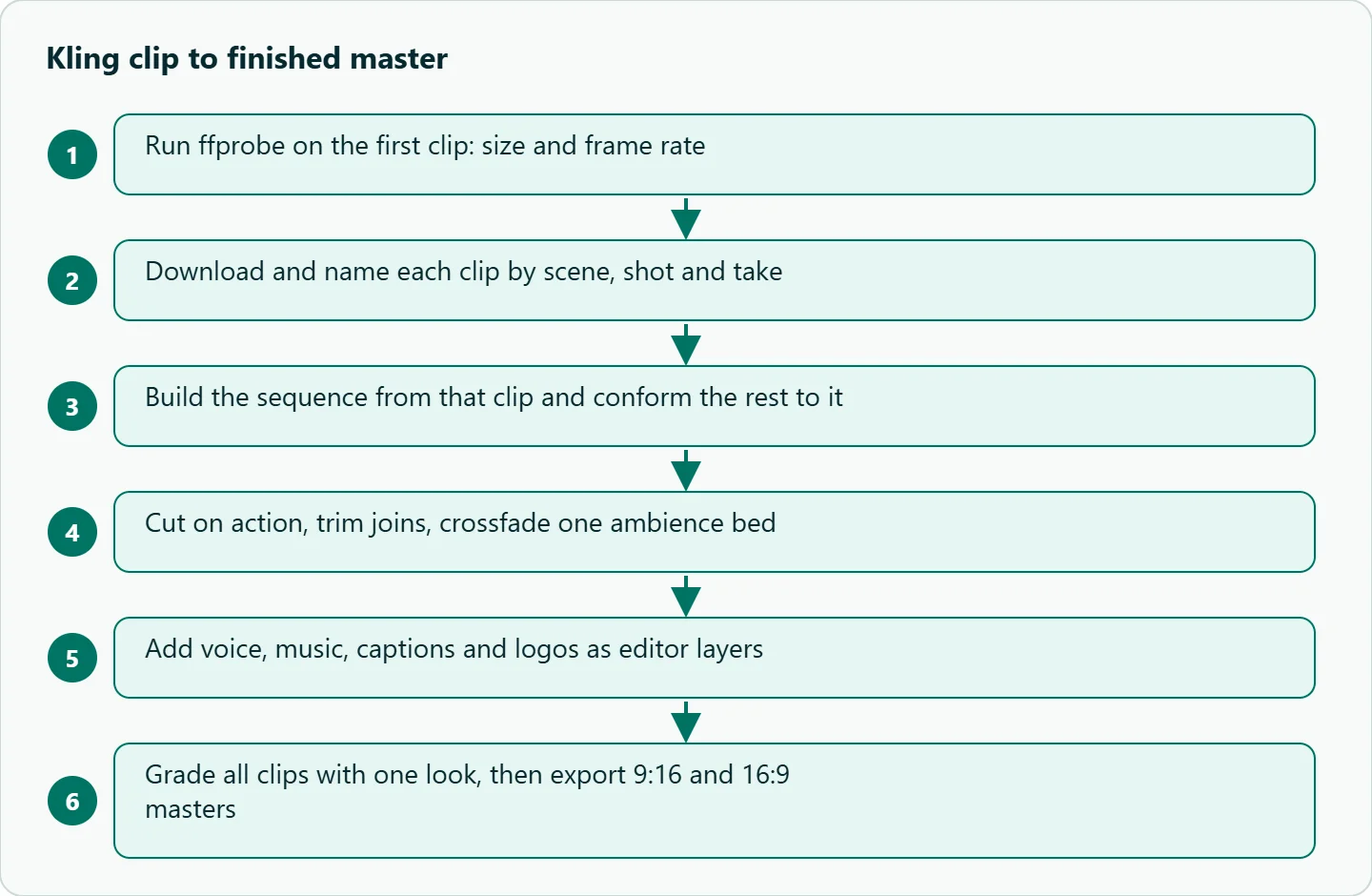
Short answer: For Kling CapCut Premiere editing, check the first clip's frame rate and size with ffprobe, build the timeline from that clip, and conform the rest to it. Hide joins with cuts on action and a continuous ambience track, add captions and logos as editor layers, grade everything with one look, and export separate 9:16 and 16:9 masters.
What a Kling clip gives you
Before opening an editor, know what you are importing. OceanToken's Kling schemas fix the size and shape per model id, and the video guide says the download is an MP4:
| Id | Resolution | Aspect ratios | Duration |
|---|---|---|---|
kwaivgi/kling-v3.0-pro |
1080p | 16:9, 9:16, 1:1 | 3 to 15 s |
kwaivgi/kling-v3.0-std |
720p | 16:9, 9:16, 1:1 | 3 to 15 s |
kwaivgi/kling-v3.0-omni |
720p, 1080p or 4k | 16:9, 9:16, 1:1 | 3 to 15 s |
kwaivgi/kling-video-o1 |
1080p | 16:9, 9:16, 1:1 | 5 or 10 s |
What neither the schemas nor Kling's VIDEO 3.0 user guide state is the frame rate. Don't guess it from a review. Read it from your own file before you set up a sequence:
ffprobe -v error -select_streams v:0 \
  -show_entries stream=codec_name,width,height,r_frame_rate \
  -of default=noprint_wrappers=1 s01-sh01-t1.mp4
Two limits from that table shape the edit later. The shortest generation is 3 seconds, so any 2-second slot in your template is a trim. And there is no 4:5 output, so a feed version means cropping from 1:1 or 9:16.
Download and name clips before import
A finished job's content_url is valid for 24 hours, according to OceanToken's video guide , and you can also fetch the file from GET /v1/videos/{video_id}/content. Save each clip under its final name the moment it finishes, rather than renaming a folder of random ids later.
A scene-shot-take scheme sorts correctly in every editor's bin: s02-sh03-t2.mp4 is scene 2, shot 3, take 2. Keep a sheet next to the folder with the prompt, model id, duration and whether sound was on. When a client asks for "the version with the blue mug," that sheet is how you find it.
import os, requests

BASE = "https://api.oceantoken.ai/v1"
H = {"Authorization": f"Bearer {os.environ['OCEANTOKEN_API_KEY']}"}

def save_clip(video_id, scene, shot, take, folder="clips"):
    os.makedirs(folder, exist_ok=True)
    name = f"s{scene:02d}-sh{shot:02d}-t{take}.mp4"
    r = requests.get(f"{BASE}/videos/{video_id}/content", headers=H, timeout=120)
    r.raise_for_status()
    with open(os.path.join(folder, name), "wb") as f:
        f.write(r.content)
    return name
If you are generating dozens of clips, our Kling Python batch pipeline covers submitting, polling and stitching in code. This guide picks up where a person takes over in an editor.
Kling editing in Premiere and CapCut: timeline setup
Premiere Pro. Adobe's help says that "to create a sequence, drag a clip from the Project panel to the New Item icon in the Project panel." Do this with a representative Kling clip, then open the sequence settings and compare the frame size and rate with what ffprobe reported. If the numbers agree, every other clip from the same model id should drop in without a mismatch warning.
CapCut. CapCut's own guide starts vertical edits by selecting "Ratio" to switch the canvas, so set the ratio before you drag clips in. CapCut letterboxes anything that does not match the canvas, which is easy to miss on a phone preview. Check each clip at full screen.
If you mix clips with different frame rates, for example Kling clips with stock footage, pick one target rate, conform everything to it, and avoid mixing retimed and native clips inside one scene. A mismatch usually shows up as a faint stutter on pans, which is the kind of flaw viewers feel without naming. Menu names change between versions of both editors, so treat these steps as a map, not a script.
Hiding joins between Kling clips
Separately generated clips rarely match at the cut point. The light shifts a little and a prop moves. The classic editing tools still work:
| Technique | Use it when |
|---|---|
| Cut on action | Movement crosses the join, such as a hand reaching or a head turning |
| J-cut or L-cut | Sound from the next shot can lead in, or this shot's sound can trail out |
| Match cut | The end of one clip and the start of the next share a shape or color |
| Speed ramp | You need to bridge a slow clip into a fast one |
Trimming a few frames off each side of a join often helps, because the first and last moments of a generation can settle or start abruptly, so check them. Look at the join frame by frame and trim until the motion reads as continuous.
You can also avoid some joins entirely. Kling's multi_prompt puts up to six shots inside one clip, and our guide to how Kling multi-shot storyboards work covers it. The trade-off is that you cannot retake one shot without regenerating the whole clip, so use it for sequences where the shots must match, and keep separate clips where you expect retakes.
Audio: build one bed under every clip
Each Kling id takes generate_audio, so decide per clip whether you want sound. Generated audio is most useful as ambience and as a guide track. For ads with an exact script or a brand voice, record or synthesize the voice separately.
| Track | Content | Note |
|---|---|---|
| A1 | Voiceover or dialogue | Loudest; clean it first |
| A2 | Ambience kept from the clips | Low, crossfaded across every join |
| A3 | Licensed music | Ducked under A1 |
| A4 | Short hits and whooshes | Placed on joins to mask cuts |
Crossfade A2 across every join even when the picture cuts hard. A continuous bed is the cheapest way to make five clips feel like one location. For clips with generated dialogue, keep the audio and the picture locked together, since sliding them apart breaks the mouth movement.
Text, captions and logos
Leave text out of the prompt. Generated lettering can drift between frames, and you cannot fix a misspelled word after the fact. Add titles, captions and logos as editor layers, keep them inside the platform's safe zones, and use the editor's auto-captions as a first draft that a person checks.
A reusable 15-second template
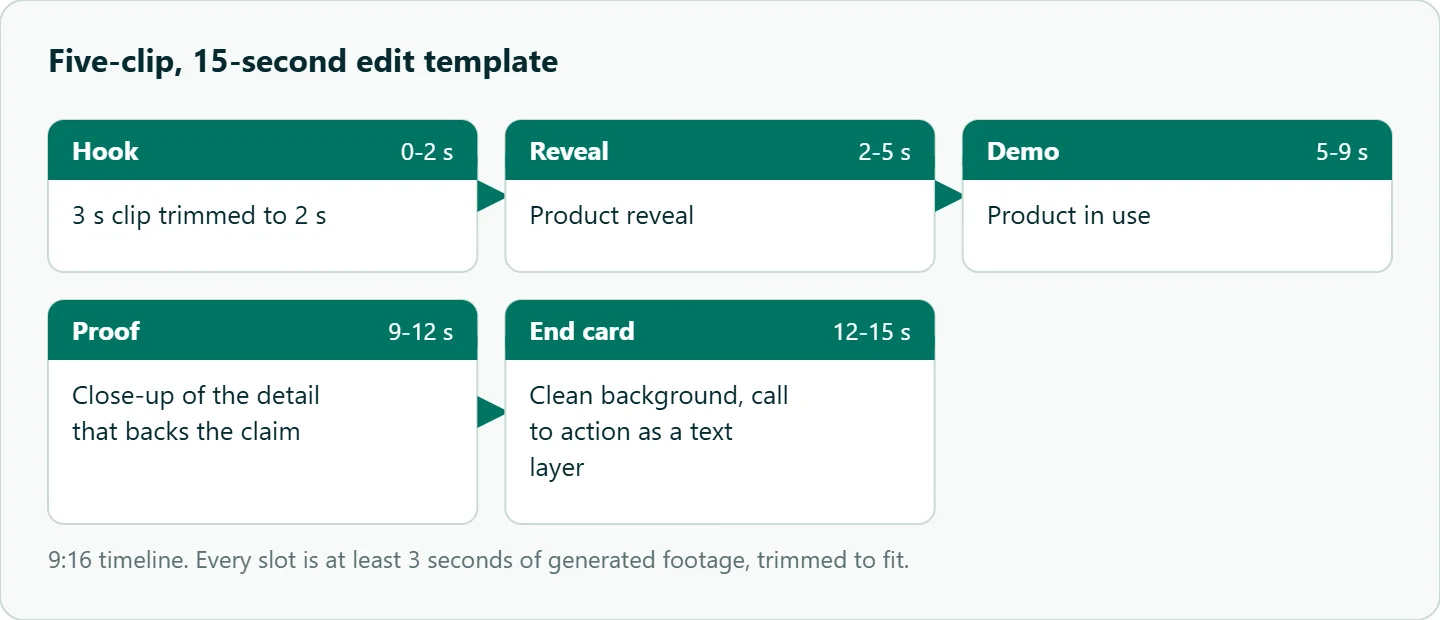
This five-slot template works for most product spots. It was built around Kling's limits: every slot is at least 3 seconds of generated footage, trimmed where the timeline asks for less.
| Slot | Timeline | Content |
|---|---|---|
| Hook | 0 to 2 s | A 3-second clip trimmed to 2 seconds |
| Reveal | 2 to 5 s | Product reveal |
| Demo | 5 to 9 s | Product in use |
| Proof | 9 to 12 s | Close-up of the detail that backs the claim |
| End card | 12 to 15 s | Clean background with the call to action as a text layer |
Generate the hook as a 3-second clip and trim it to 2. Generate the end card as a clean 3-second background and put the call to action on top as a text layer. Keep the template as a saved project, so the next product starts with the tracks, safe-zone guides and grade already in place.
Color and grain
Different generations differ in color, even from the same prompt. Apply one grade or LUT to an adjustment layer across all clips, then correct outliers individually using scopes rather than your eyes alone. A light, consistent grain on top hides small texture differences between clips.
Exporting Kling edits
Generate in the ratio you plan to publish, because Kling offers 16:9, 9:16 and 1:1 natively and a crop always costs resolution. CapCut's export panel sits at the top right and lets you set codec, bit rate, format and quality; Premiere's export settings cover the same ground.
| Target | Starting point |
|---|---|
| TikTok, Reels, Shorts | 9:16 master, 1080x1920, H.264 |
| YouTube | 16:9 master at the source resolution |
| 4:5 feed posts | Crop from a 1:1 or 9:16 master, leaving room around the subject |
| Website hero | 16:9, short loop, compressed hard |
How to test this on your workload
We have not timed or scored these steps, so run the comparison on your own clips:
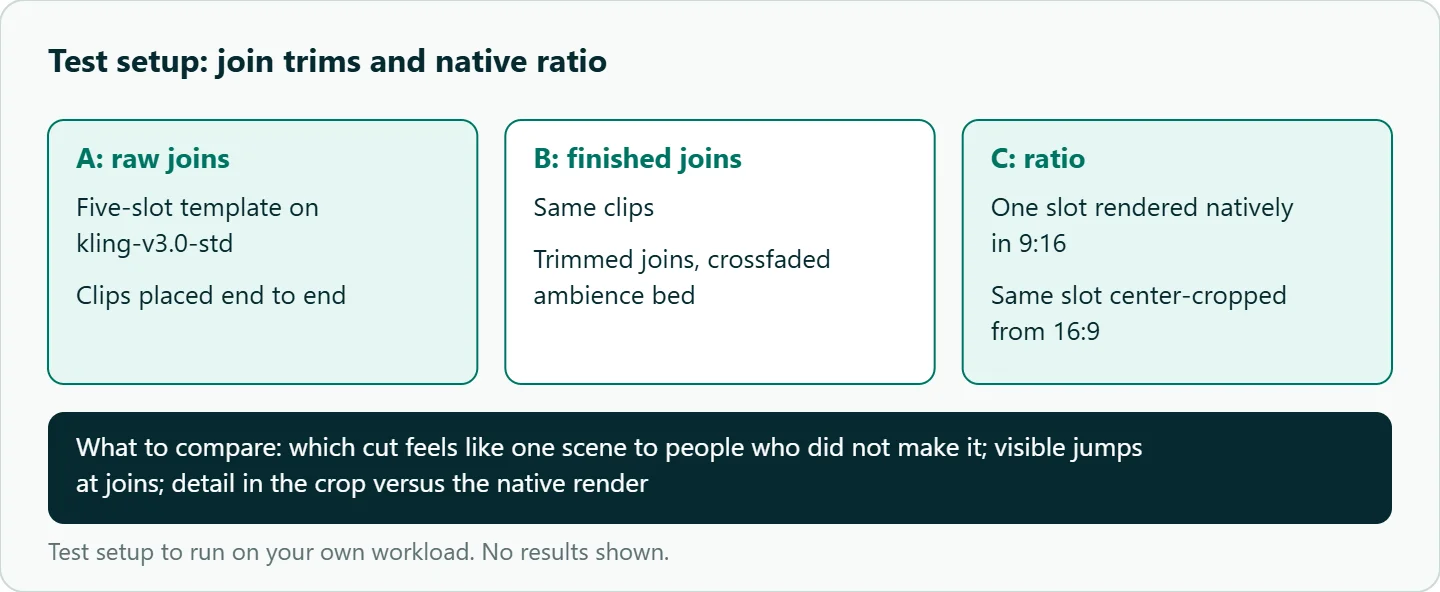
- Generate the five-slot template on
kwaivgi/kling-v3.0-stdfor a cheap draft round. - Cut it twice: once with raw joins, once with trimmed joins and a crossfaded ambience bed.
- Render one slot natively in 9:16 and once as a center crop from a 16:9 render.
- Show both cuts to people who did not make them and ask which feels like one scene.
Our take: The last mile is an editing problem. Leave handles on every clip, vary shot sizes, repeat a prop across shots, and keep one audio bed and one grade over the whole timeline. Those habits fix more than a better prompt will.
Running it on OceanToken
On OceanToken, call kwaivgi/kling-v3.0-pro for 1080p delivery or kwaivgi/kling-v3.0-std for 720p drafts at https://api.oceantoken.ai/v1; both are listed on /kling-api. Draft the edit on Standard and regenerate only the approved slots on Pro, since the two share aspect ratios and durations.
The API is OpenAI-compatible, so you change the base URL and key and keep your code. A failed video job is not charged and its balance hold is released, which matters when you regenerate one slot several times. Each key can have its own spending limit, and billing is prepaid with no subscription. See the current rate on /kling-api.
FAQ
What frame rate should I edit Kling clips at? Whatever ffprobe reports for your first clip. Neither OceanToken's schemas nor Kling's 3.0 guide state one, so measure it.
How do I hide joins between Kling clips? Cut on action, use J- and L-cuts, trim a few frames at each join, and crossfade an ambience track across every cut.
Should I keep Kling's generated audio? Keep it as ambience or a guide track. Replace voices when the script or brand voice must be exact.
Should I generate 9:16 or crop? Generate 9:16 when that is the main delivery. Crop only for formats Kling does not offer, such as 4:5.
Do I need a LUT? Not strictly, but one grade across the timeline is the fastest way to hide color shifts between generations.
Sources
- OceanToken docs: Kling v3.0 Pro request schema (checked 2026-11-11)
- OceanToken docs: Kling v3.0 Omni request schema (checked 2026-11-11)
- OceanToken docs: Video guide (checked 2026-11-11)
- Kling: VIDEO 3.0 model user guide (checked 2026-11-11)
- Adobe: Create sequences in Premiere (checked 2026-11-11)
- CapCut: How to edit vertical videos (checked 2026-11-11)
- OceanToken Kling API page (checked 2026-11-11)
Get your OceanToken API key
- Create an OceanToken account and an API key.
- Copy the snippet below, paste your key, and run it.
- Check the current rate on /kling-api.
curl https://api.oceantoken.ai/v1/videos \
  -H "Authorization: Bearer $OCEANTOKEN_API_KEY" \
  -H "Content-Type: application/json" \
  -d '{"model": "kwaivgi/kling-v3.0-pro", "prompt": "A runner crosses a bridge at sunrise, tracking shot, warm light", "duration": 5, "aspect_ratio": "9:16"}'
More from the blog
A Unified API for Chat, Image and Video
Building on a unified API for chat, image and video: sync vs async calls, billing units, retries, timeouts and storage, with three calls and a launch checklist.
Kimi K3 API International Access Guide
Use the Kimi K3 API internationally: sign up with email, pay by card, create one key and call moonshotai/kimi-k3 with an OpenAI SDK. Steps, code and checks.
Call Tencent Hy3 With the OpenAI SDK
Call Tencent Hy3 with the OpenAI SDK outside China: base URL, model id, streaming, tool calls, reasoning_effort values, Hy3 vs Hy3 preview, and token billing.